Friday, 14 September 2012

Identify the SQL Server version and edition

To determine which version of Microsoft SQL Server is running, connect to SQL Server by using SQL Server Management Studio, and then run the following Transact-SQL statement:

SELECT SERVERPROPERTY ('productversion'),
       SERVERPROPERTY ('productlevel'),
       SERVERPROPERTY ('edition')

The following results are returned:
-The product version (for example, 10.0.1600.22)
-The product level (for example, RTM)
-The edition (for example, Enterprise)

SQL Server 2008 version number examples:
-RTM: 10.0.1600.*
-SP1: 10.0.2531.*

SQL Server 2005 version number examples:
-RTM: 9.0.1399.*
-SP1: 9.0.2047.*
-SP2: 9.0.3042.*
-SP3: 9.0.4035.*

SQL Server 2000 version number examples:
-RTM: 8.0.194.*
-SP1: 8.0.384.*
-SP2: 8.0.534.*
-SP3: 8.0.760.0
-SP3a: 8.0.760.*
-SP4: 8.0.2039.*

Friday, 31 August 2012

Rebuild Master:

Step 1: Insert your setup media CD or folder where you have dumped SQL Server Installation
Step 2: Open command prompt
Step 3: Go to location (wherever you have setup, Step 1)
Step 4: setup /ACTION=REBUILDDATABASE /QUIET /INSTANCENAME=MSSQLServer /SQLSYSADMINACCOUNTS=MyAdmin /SAPWD=somePwd

Step 5: this will pop up new command window and then disappears

Step 6: you will have to refer logs so as to see whether it was successful completed or exit with error

This is it, you system database has been rebuild successfully!!
Restoring Master Database - An alternative method:
Step 1: Take backup of master database, in your case, I assume, you already have your master database backed up.

Step 2: Stop SQL Server Services * you will need Administrator permission for this operation

Step 3: Start SQL Server using -C and -M parameter; this will start SQL Server in single user mode which is required to restore Master database

Step 4: Restore database using SQLCMD

This is it, you have successfully restore your master database!!!

Is it this simple? No, wait, there are few things we need to be careful with....

The above example have save you because below conditions are true:
  1. You have back up of your master database, or
  2. This server is fresh installation or
  3. there are no user databases or
  4. this server is not production box
If the above conditions were not true, you will have to perform below steps:
  1. Restore / Rebuild system databases
  2. Recreate all the Login that you have on your crashed server - backing up master db helps you here
  3. you will have to recreate all the jobs and SSIS/DTS Packages that you have - backing up MSDB database will save you
  4. similarly distribution database backup will help you if you have replication configured
Conclusion :  I wish that you have schedule maintenance plan / job to take full backup of your system databases i.e. Master, MSDB, and Distribution(if you have configured replication).
Disclaimer : The example used here is for illustration purpose only.

Thursday, 30 August 2012

compatibility level change
 
CREATE DATABASE statement and then issues “sp_dbcmptlevel” to set the database compatibility level to 80 as shown below.
CREATE DATABASE [test] ON PRIMARY
( NAME = N’test’, FILENAME = N’Z:\SQLData\test.mdf’ , SIZE = 2048KB , FILEGROWTH = 1024KB )
LOG ON
( NAME = N’test_log’, FILENAME = N’Y:\SQLData\test3_log.ldf’ , SIZE = 3072KB , FILEGROWTH = 10%)
GO
EXEC dbo.sp_dbcmptlevel @dbname=N’test’, @new_cmptlevel=80
GO

Changing Compatibility Level
So once you have identified the compatibility level of your database and know what you want to change it to you can use the sp_dbcmptlevel system stored procedure to make the change.  The command has the following syntax:
sp_dbcmptlevel [ [ @dbname = ] name ]
[ , [ @new_cmptlevel = ] version ]
–to change to level 80
dbo.sp_dbcmptlevel @dbname=N’test’, @new_cmptlevel=80
–to change to level 90
dbo.sp_dbcmptlevel @dbname=N’test’, @new_cmptlevel=90

–or
sp_dbcmptlevel ‘test’, ’80′

sp_dbcmptlevel ‘test’, ’90′

Differences
There are several differences on how compatibly levels affect your database operations.  SQL Server Books Online has a list of these differences and the following list shows you a few of these items:
Compatibility level setting of 80 or earlier Compatibility level setting of 90 Possibility of impact
For locking hints in the FROM clause, the WITH keyword is always optional. With some exceptions, table hints are supported in the FROM clause only when the hints are specified with the WITH keyword. For more information, see FROM (Transact-SQL). High
The *= and =* operators for outer join are supported with a warning message. These operators are not supported; the OUTER JOIN keyword should be used. High
SET XACT_ABORT OFF is allowed inside a trigger. SET XACT_ABORT OFF is not allowed inside a trigger. Medium
(Source: SQL Server 2005 Books Online)  For a complete list of these items look here:
In addition, each new compatibility level offers a new list of reserved keywords.  Here is a list of the new keywords for SQL Server 2005.
Compatibility level setting Reserved keywords
90 PIVOT, UNPIVOT, REVERT, TABLESAMPLE
80 COLLATE, FUNCTION, OPENXML
70 BACKUP, CONTAINS, CONTAINSTABLE, DENY, FREETEXT, FREETEXTTABLE, PERCENT, RESTORE, ROWGUIDCOL, TOP
65 AUTHORIZATION, CASCADE, CROSS, DISTRIBUTED, ESCAPE, FULL, INNER, JOIN, LEFT, OUTER, PRIVILEGES, RESTRICT, RIGHT, SCHEMA, WORK
(Source: SQL Server 2005 Books Online)
If one of these keywords is being used and your database is set to this compatibly level the commands will fail.  To get around this you could put the keyword in either square brackets ([ ]) or use quotation marks (” “) such as [PIVOT] or “PIVOT”.

T-SQL Code to Backup System Databases

Database Administrators can use the below T-SQL code to backup all of the system databases to SystemDatabaseBackups folder on the E drive. You will need to change this path for your systems.
This is a simple script that includes code for each database to be backed up:
USE master
GO
SELECT GETDATE() AS 'System Database Backup Start Time'
GO
/* Backup Distribution Database */ 
BACKUP DATABASE Distribution 
TO DISK = 'E:\SystemDatabaseBackups\Distribution.BAK' 
WITH INIT
GO
/* Backup ReportServer Database */ 
BACKUP DATABASE ReportServer 
TO DISK = 'E:\SystemDatabaseBackups\ReportServer.BAK' 
WITH INIT
GO
/* Backup ReportServerTempDB Database */ 
BACKUP DATABASE ReportServerTempDB 
TO DISK = 'E:\SystemDatabaseBackups\ReportServerTempDB.BAK' 
WITH INIT
GO
/* Backup Master Model */ 
BACKUP DATABASE Model 
TO DISK = 'E:\SystemDatabaseBackups\Model.BAK' 
WITH INIT
GO
/* Backup Master Database */ 
BACKUP DATABASE Master 
TO DISK = 'E:\SystemDatabaseBackups\Master.BAK' 
WITH INIT
GO
/* Backup Master MSDB */ 
BACKUP DATABASE MSDB 
TO DISK = 'E:\SystemDatabaseBackups\MSDB.BAK' 
WITH INIT
GO
/* Copy Resource Database Files Using XP_CMDSHELL */ 
EXEC xp_cmdshell 'COPY /Y "D:\Program Files\Microsoft SQL Server\MSSQL10.
SQL2008\MSSQL\Binn\mssqlsystemresource.mdf" "E:\SystemDatabaseBackups"' 
GO
EXEC xp_cmdshell 'COPY /Y "D:\Program Files\Microsoft SQL Server\MSSQL10.
SQL2008\MSSQL\Binn\mssqlsystemresource.ldf" "E:\SystemDatabaseBackups"'
GO
SELECT GETDATE() AS 'System Database Backup End Time'
GO

Tuesday, 28 August 2012

Restore Database From SQL Server 2008 to SQL Server 2005 Part 1 – 3

PART 1:

Problem

When you restore or attach a database which is created from SQL Server 2008 to SQL Server 2005 or SQL Server 2000, you will see some error messages as the examples below.

Backup and Restore

You have backup a database from SQL Server 2008. If you try to restore the backup database file to SQL Server 2005, you will receive the error message:
An exception occurred while executing a Transact-SQL statement or batch. (Microsoft.SqlServer.ConnectionInfo)
Additional information:
-> The media family on device ‘the backup file‘ is incorrectly formed. SQL Server cannot process this media family.
RESTORE HEADERONLY is terminating abnormally. (Microsoft SQL Server, Error: 3241)

Restore Database Error Message

Detach and Attach

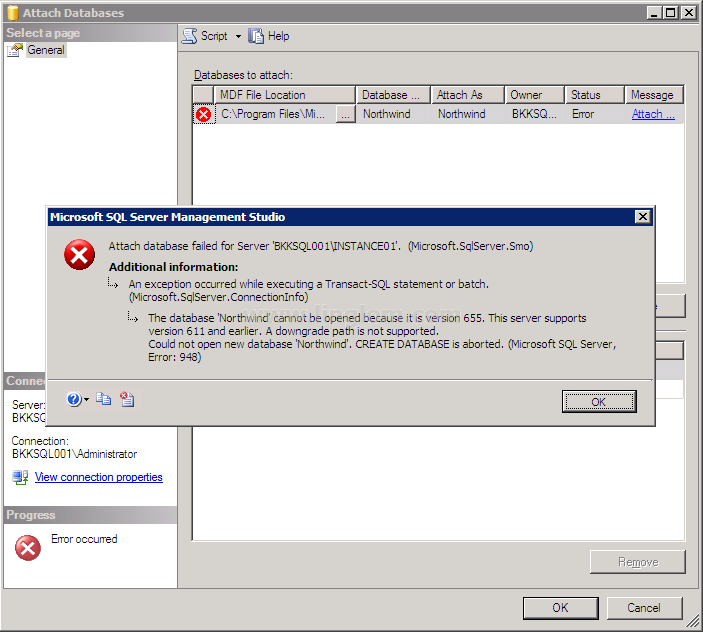
You have detach a database from SQL Server 2008. If you try to attach the detached database file to SQL Server 2005, you will receive the error message:
Attach database failed for Server ‘SQL Server name’. (Microsoft.SqlServer.Smo)
Additional information:
-> An exception occurred while executing a Transact-SQL statement batch. (Microsoft.SqlServer.ConnectionInfo)
–> The database ‘database name’ cannot be opened because it is version 655. This server supports version 611 and earlier. A downgrade path is not supported.
Could not open new database ‘database name’. CREATE DATABASE is aborted. (Microsoft SQL Server, Error: 948)

Attach Database Error Message

Solution

These problems occur because a backup or detach database file is not backward compatible. You cannot restore or attach a database which is created from a higher version of SQL Server to a lower version of SQL Server.
But there are some alternatives which can help you to restore a database to a lower version of SQL Server. I divide into separate parts.
  1. Part 2: Generate SQL Server Scripts Wizard. The solution creates a SQL Server script file using a wizard. Then, you simply execute the script file on SQL Server 2005 or SQL Server 2000. So you will get everything as same as the source database on the destination. But there are some disadvantages:
    • If the source database contains lots of data, you will have a large script file.
    • The generated file is a plain text. Anyone who has access to the file can read it. So you should delete the script file after the restoration.
  2. Part 3: Import and Export Wizard. This solution exports data to the targeted SQL Server using a wizard. It is more secure and effective than the first solution. But you can only export tables and views only.
————————————————————————————————————————————————————————————————————————————————————————————

PART 2: Generate SQL Server Scripts Wizard

Now let’s see a first solution to solve the problems.
On this post, you see how to backup ‘Northwind’ database by generate a SQL Server script on SQL Server 2008. Then, restore the ‘Northwind’ database by execute the SQL Server script on SQL Server 2005.

Step-by-step

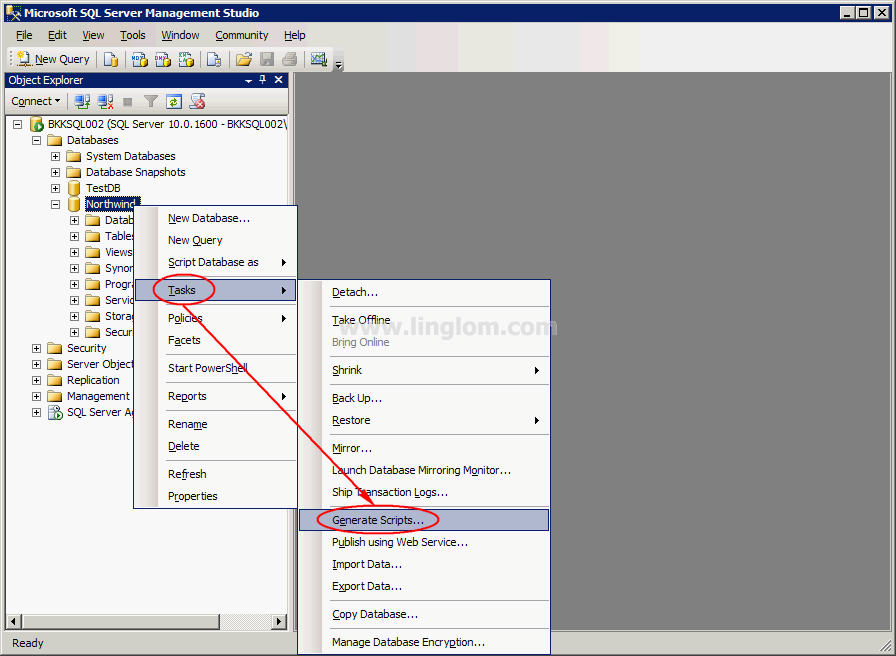
  1. On Microsoft SQL Server Management Studio, connects to the SQL Server 2008. Right-click on the database that you want to backup and select Tasks -> Generate Scripts.
    Generate Scripts
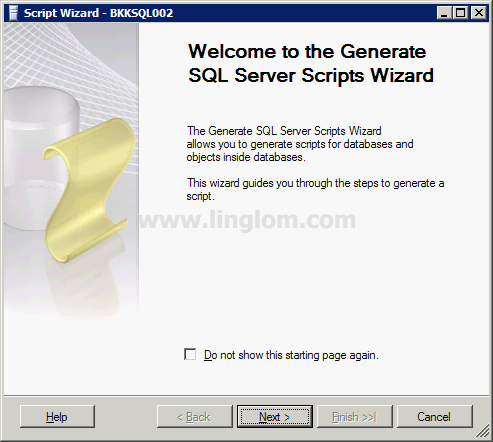
  2. On Welcome to the Generate SQL Server Scripts Wizard, click Next.
    Welcome to the Generate SQL Server Scripts Wizard
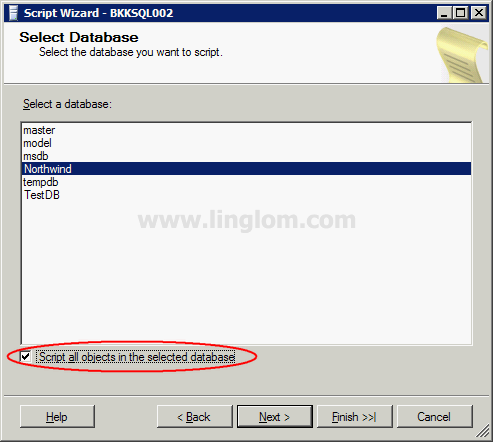
  3. On Select Database, select Northwind and check Script all objects in the selected database. Then, click Next.
    Select Database
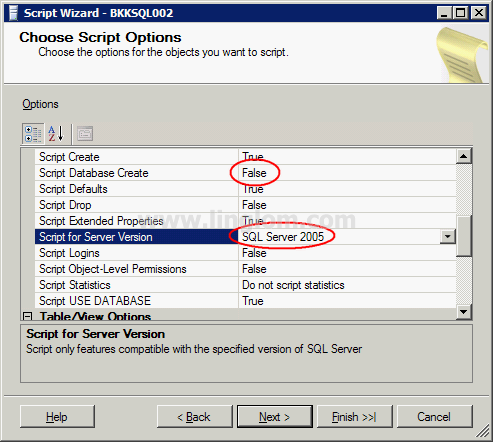
  4. On Choose Script Options, set Script Database Create to False and Script for Server Version to SQL Server 2005.
    Note: You can set Script Database Create to True if your source and destination for store database files are the same location.
    Script for Server Version to SQL Server 2005
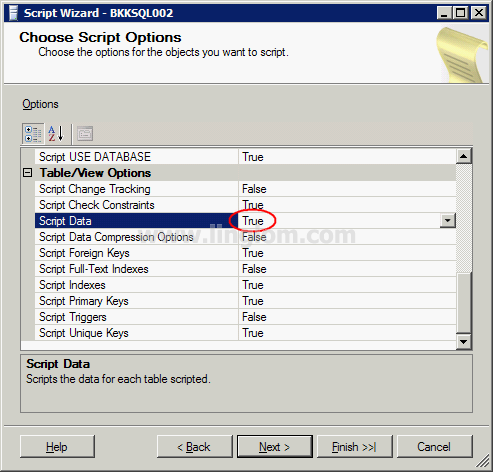
  5. Continue on Choose Script Options, scroll down and set Script Data to True. Click Next
    Note: Set this option to true to include data on each table to a script.
    Script Data to True
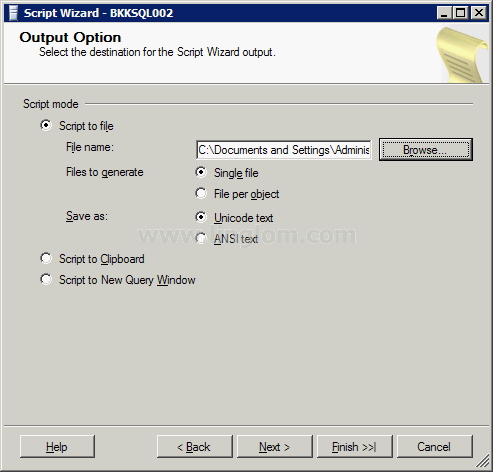
  6. On Output Option, select a destination for the output script. Select Script to file and browse to the location that you want. Click Next.
    Select Script Output Destination
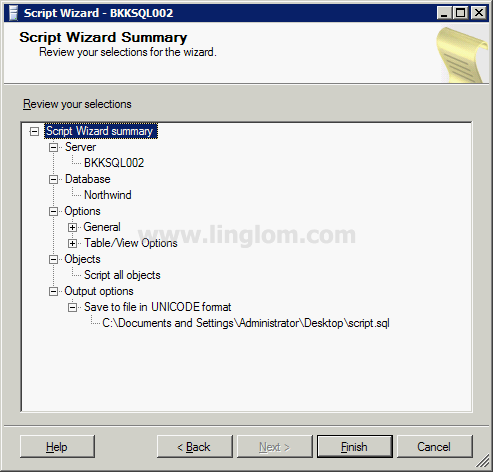
  7. On Script Wizard Summary, you can review your selections. Then, click Finish.
    Script Wizard Summary
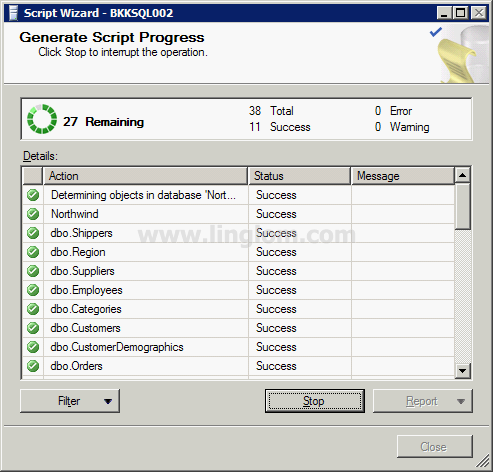
  8. On Generate Script Progress, the wizard is creating a SQL Server script.
    Generate Script Progress
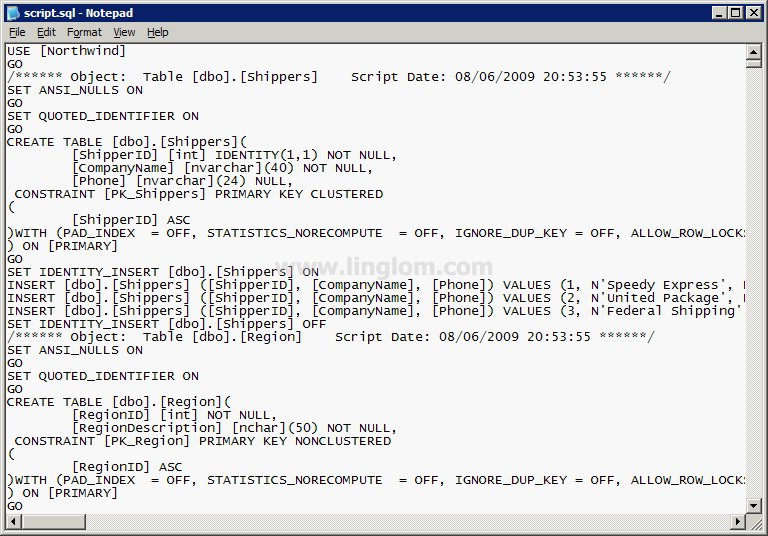
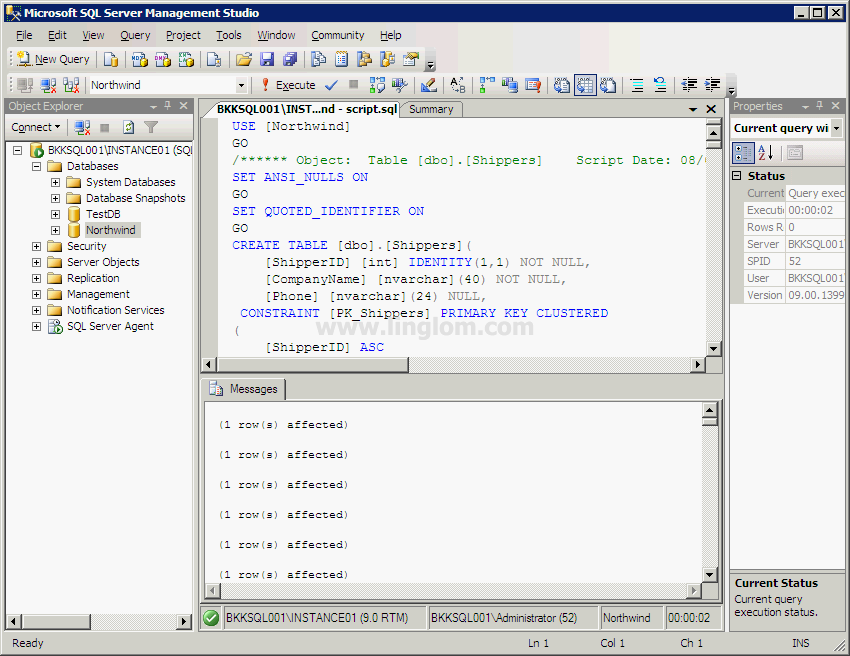
  9. When the script has been completed, you see the output file as similar the figure below.
    The Generated Script
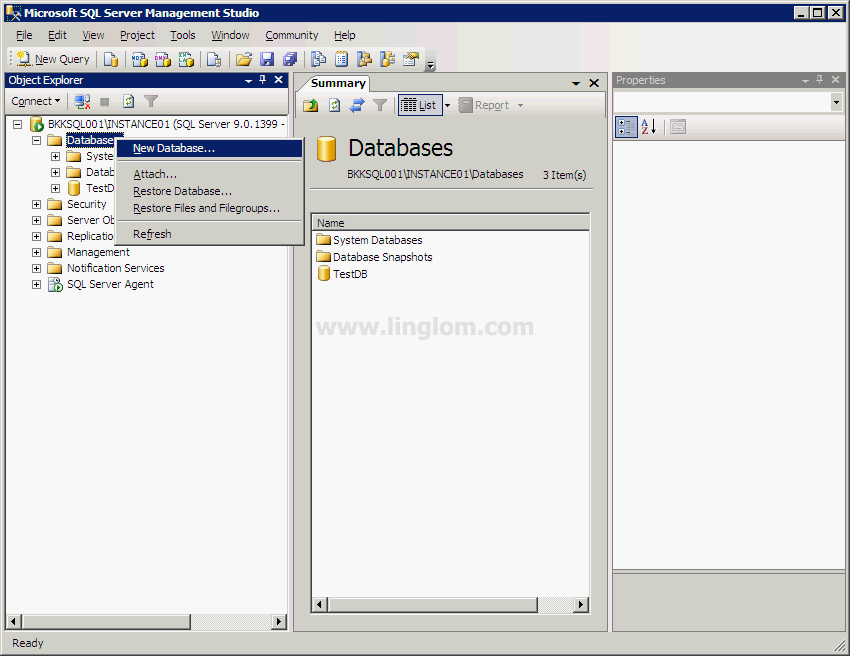
  10. Connect to SQL Server 2005, create a new database. Right-click Database -> New Database.
    Note: If you have set Script Database Create to True on step 4, you don’t have to create a database manually.
    Create New Database
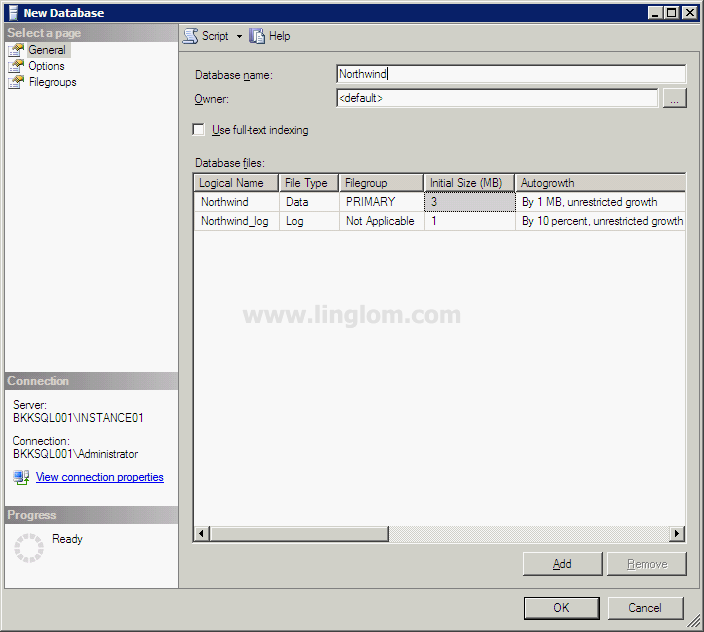
  11. Type ‘Northwind’ as database name. Click OK.
    Create Database Northwind
  12. Execute the SQL Server script file that you have created.
    Execute the script
  13. Now the database ‘Northwind’ is restored on SQL Server 2005.
    Northwind Database

———————————————————————————————————————————————————————————-

PART 3: Export Data Wizard

On this post, you see how to export tables on ‘Northwind’ database from SQL Server 2008 to SQL Server 2005 using export data wizard.

Step-by-step

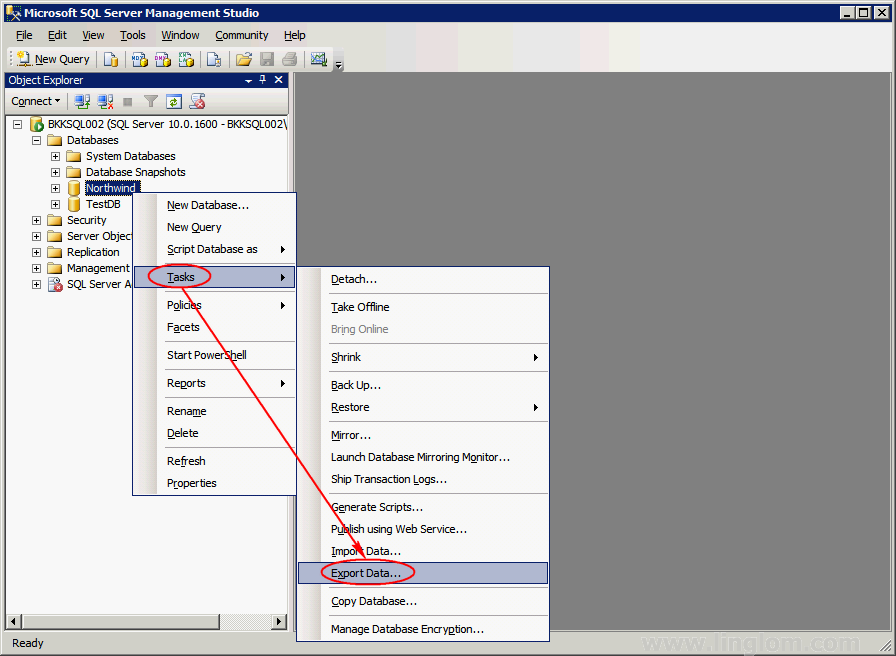
  1. On Microsoft SQL Server Management Studio, connects to SQL Server 2008. Right-click on the database that you want to export data -> select Tasks -> Export Data.
    Export Data
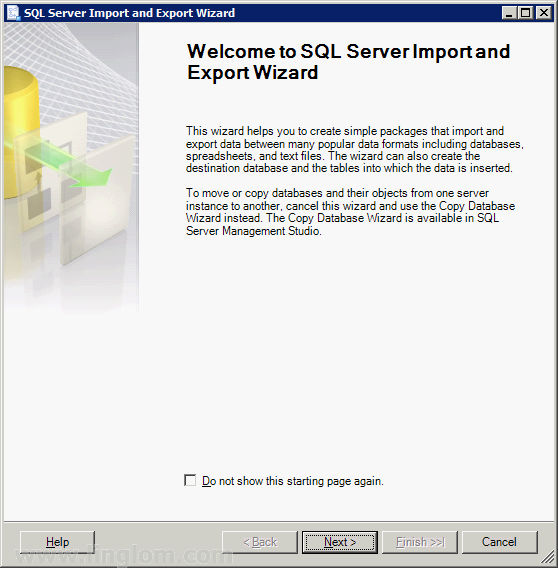
  2. On Welcome to SQL Server Import and Export Wizard, click Next.
    Welcome to SQL Server Import and Export Wizard
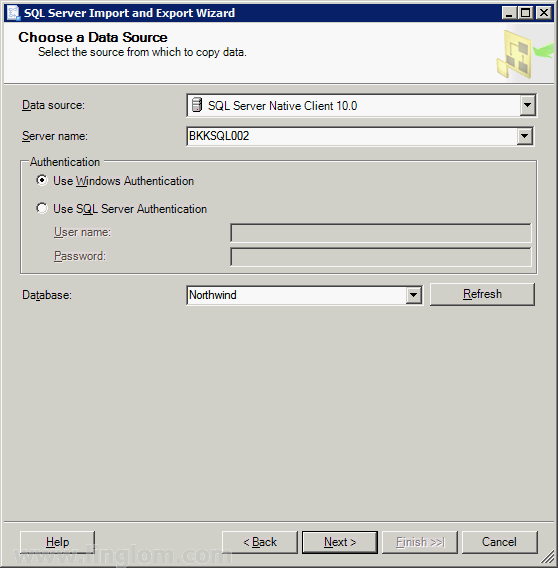
  3. On Choose a Data Source, select the source from which to copy data. Set Data source to SQL Server Native Client 10.0. Verify that Server name is the source of SQL Server 2008 that you want and select Database as ‘Northwind’. Click Next.
    Choose a Data Source
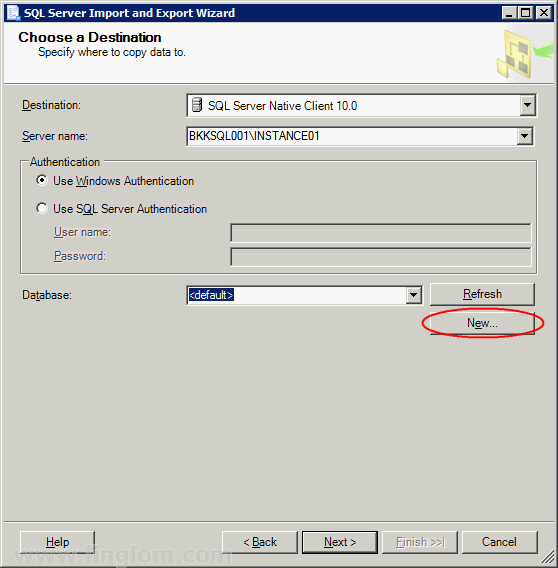
  4. On Choose a Destination, specify where to copy data to. Set Destination to SQL Server Native Client 10.0. Type the Server name to the destination of SQL Server 2005 that you want. You can also click Refresh to verify if you can connect to the specify server name. Currently, I don’t have ‘Northwind’ database on SQL Server 2005 so I will create a new one, click New.
    Choose a Destination
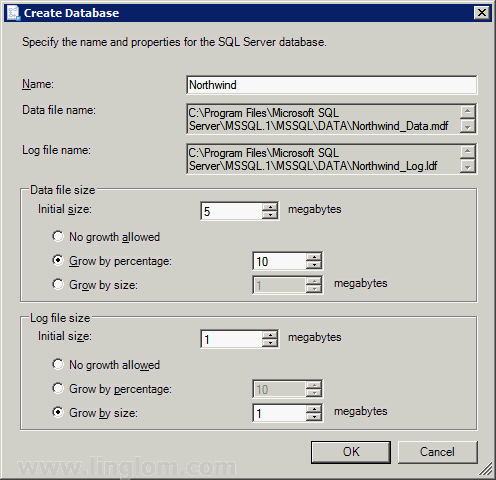
  5. On Create Database, type name as ‘Northwind’ and click OK.
    Create Database
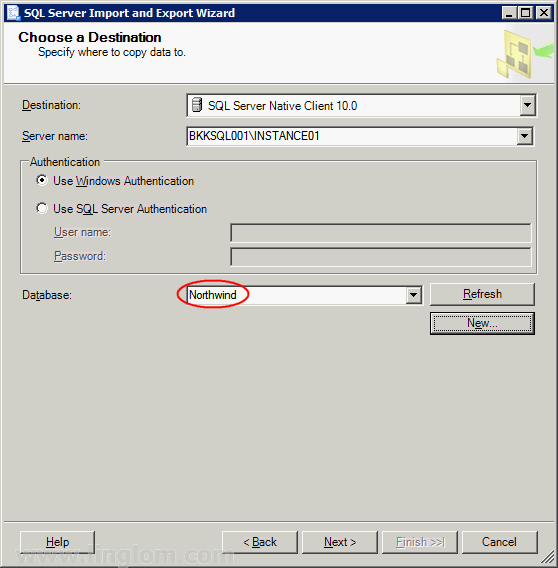
  6. Back to Choose a Destination, I have created ‘Northwind’ database so select it as Database. Click Next.
    Choose a Destination
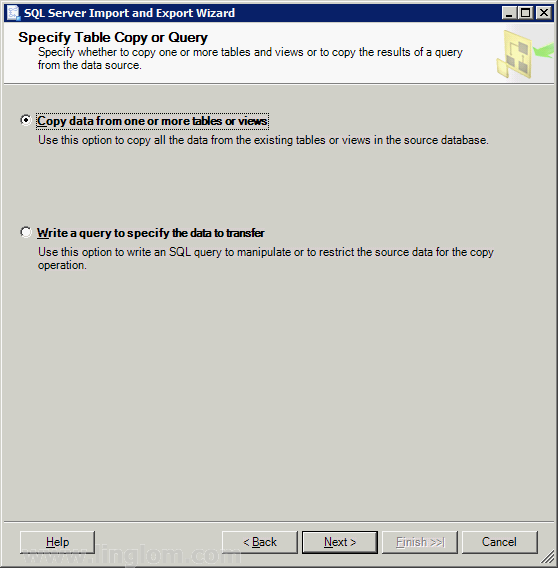
  7. On Specify Table Copy or Query, select Copy data from one or more tables or views and click Next.
    Copy data from one or more tables or views
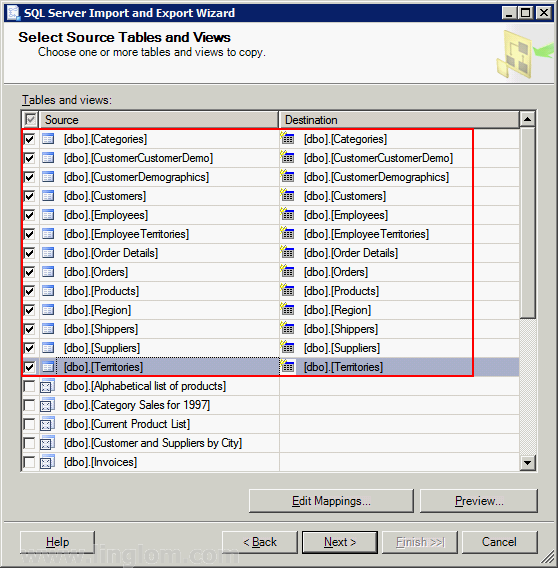
  8. On Select Sources Tables and Views, select tables that you want to export. On this example, I select all tables on ‘Northwind’ database.
    Select Sources Tables and Views
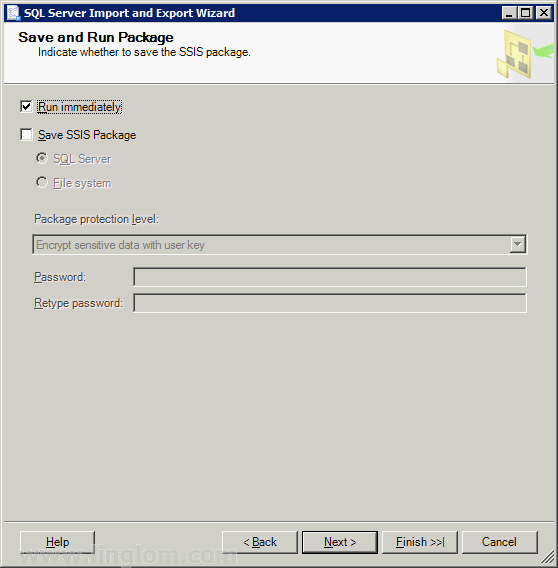
  9. On Save and Run Package, click Next.
    Save and Run Package
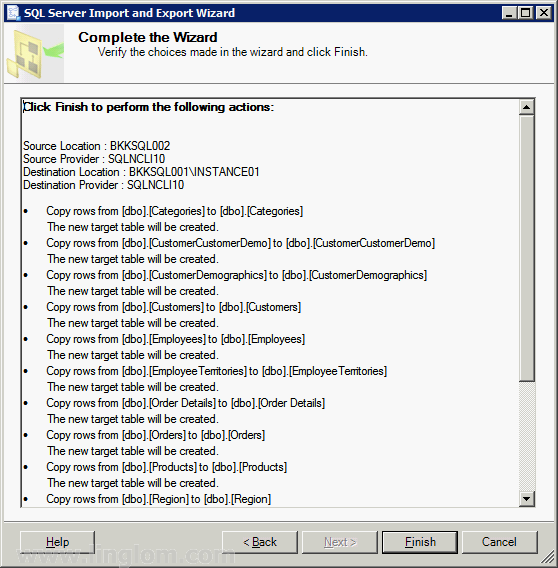
  10. On Complete the Wizard, you can verify the choices made in the wizard. Then, click Finish.
    Complete the Wizard
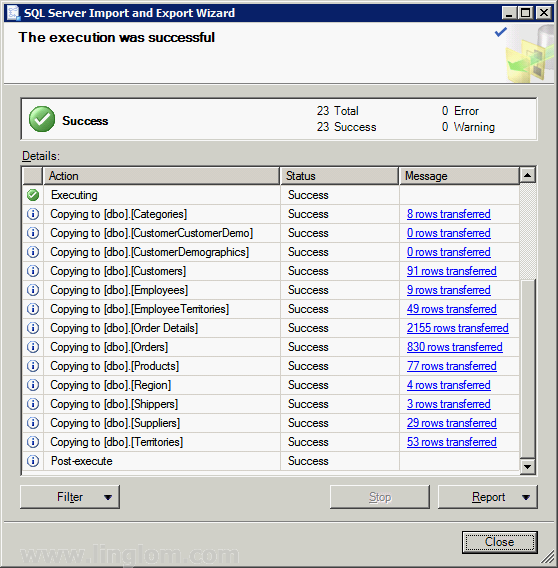
  11. Wait until the wizard finishes execution.
    Export Data Successful
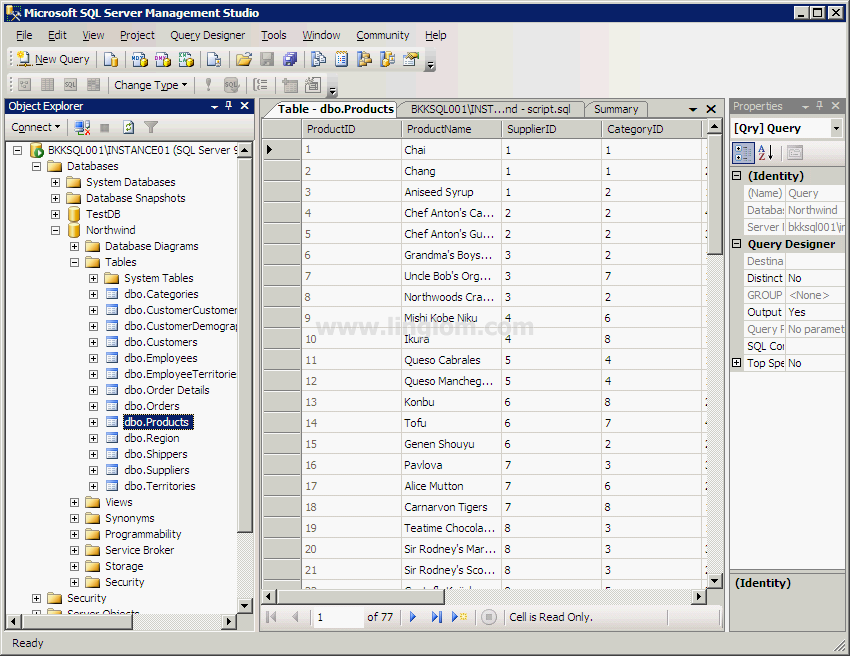
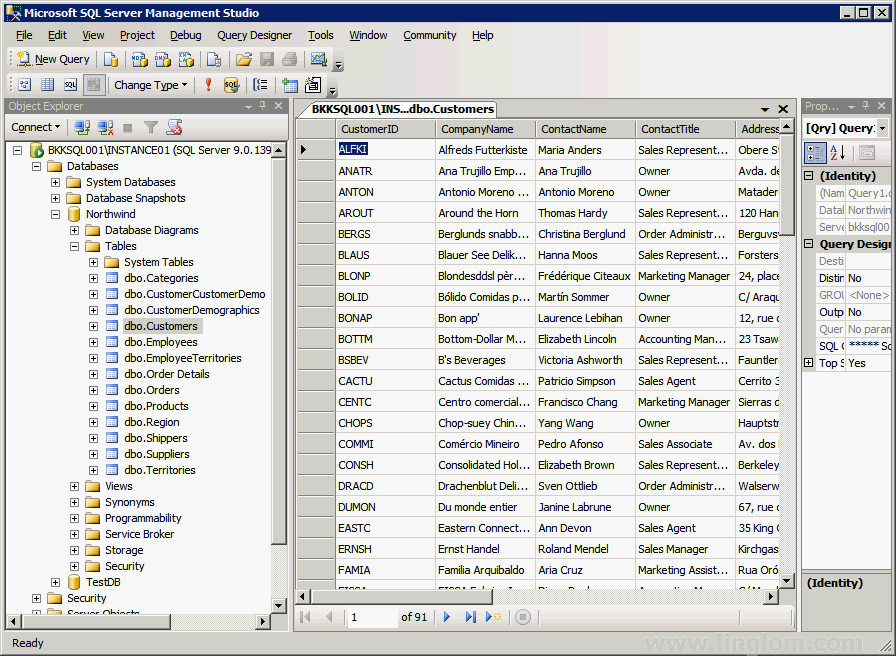
  12. Now I have exported tables of ‘Northwind’ database from SQL Server 2008 to SQL Server 2005 successfully.
    The Exported Tables

Max Memory Settings for SQL Server 2005/2008

It is pretty important to make sure you set the Max Server memory setting for SQL Server 2005/2008 to something besides the default setting (which allows SQL Server to use as much memory as it wants, subject to signals from the operating system that it is under memory pressure). This is especially important with larger, busier systems that may be under memory pressure.
This setting controls how much memory can be used by the SQL Server Buffer Pool.  If you don’t set an upper limit for this value, other parts of SQL Server, and the operating system can be starved for memory, which can cause instability and performance problems. It is even more important to set this correctly if you have “Lock Pages in Memory” enabled for the SQL Server service account (which I always do for x64 systems with more than 4GB of memory).
These settings are for x64, on a dedicated database server, only running the DB engine, (which is the ideal situation).
Physical RAM                        MaxServerMem Setting
2GB                                           1500
4GB                                           3200
6GB                                           4800
8GB                                           6400
12GB                                         10000
16GB                                         13500
24GB                                         21500
32GB                                         29000
48GB                                         44000
64GB                                         60000
72GB                                         68000
96GB                                         92000
128GB                                       124000
If you are running other SQL Server components, such as SSIS or Full Text Search, you will want to allocate less memory for the SQL Server Buffer Pool. You also want to pay close attention to how much memory is still available in Task Manager. This is how much RAM should be available in Task Manager while you are under load (on Windows Server 2003):
Physical RAM            Target Avail RAM in Task Manager
< 4GB                               512MB – 1GB
4-32GB                              1GB – 2GB
32-128GB                            2GB – 4GB
> 128GB                              > 4GB
You can use T-SQL to set your MaxServerMemory setting. The sample below sets it to 3500, which is the equivalent of 3.5GB. This setting is dynamic in SQL Server 2005/2008, which means that you can change it and it goes into effect immediately, without restarting SQL Server.
–Turn on advanced options
EXEC sp_configure ‘Show Advanced Options’ ,1;
GO
RECONFIGURE;
GO
–Set max server memory
EXEC sp_configure ‘max server memory (MB)’ ,10000;
GO
RECONFIGURE;
GO
–See what the current values are
EXEC sp_configure;
You can also change this setting in the SSMS GUI, as you see below:

Wednesday, 22 August 2012

SQL server  Silent Installation


Start /wait E:\software\SQL_Server_2005_Express\SQL_2005_Express.exe /qn INSTANCENAME="SQL2K5" ADDLOCAL="All" SQLACCOUNT="ad*\administrator" SQLPASSWORD="S3****" AGTACCOUNT="ads\administrator" AGTPASSWORD="S3*****" SQLBROWSERACCOUNT="ad*\administrator" SQLBROWSERPASSWORD="S3****"